Organization Settings
1. Welcome New Team Members on Slack
We'll send new members of your team a message in Slack and give them a tour of how Teampay works.
2. Accounting System Connect
Here, you can connect your ERP to allow for transactions to automatically sync between Teampay and your account system.
3. HRIS Merge System Connect
Connect your HRIS system to Teampay through our partner Merge to sync and update employee information automatically.
Learn more here:
HRIS Integration
4. TravelPerk Integration
Connect to TravelPerk to automatically upload receipts from your employees' trips.
Learn more here:
TravelPerk
Accounting
1. Accounting Date Sync
Choose whether your organization would prefer transactions to sync based on Swipe Date or Cleared Date when they reach your ERP.
2. Dimension Management
Here, you can manage the dimensions synced from your accounting system as well as Teampay-created custom dimensions.
3. Invoice Inbox
If your team is using Teampay's Account Payable feature, select what is captured by the Invoice Inbox.
4. Cash Back
Select the account that earned cash back should fall into.
Requests
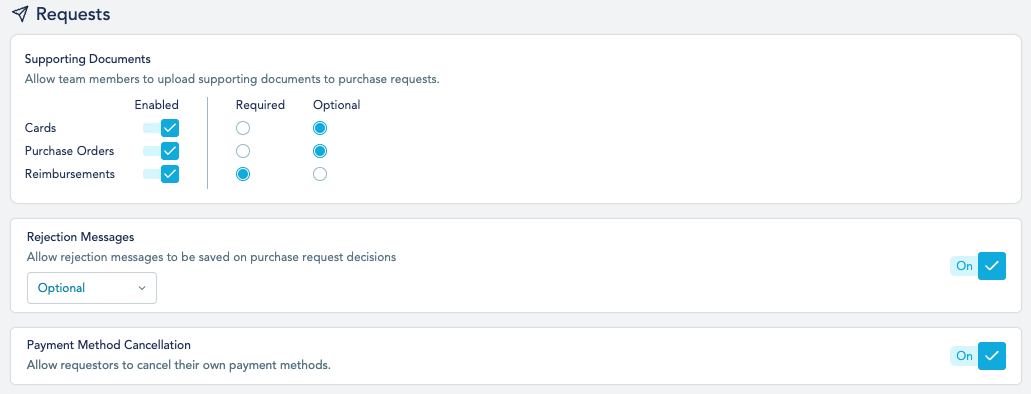
1. Supporting Documents
Here, you can control if supporting documentation is required or optional for the 3 different types of requests. Additionally, you can toggle it off altogether if you do not want the user to be prompted to submit documents for that type of request.
2. Rejection Messages
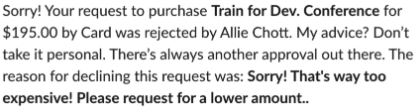
You can give Approvers the ability to send a rejection message to the requestor upon rejection of a purchase request, making it either required or optional. This will send your requestor a message that looks like this:
3. Payment Method Cancellation
If selected, this will allow Requestors to cancel active payment methods they have requested. If disabled, only Admins will have the ability to cancel payment methods.
Transactions
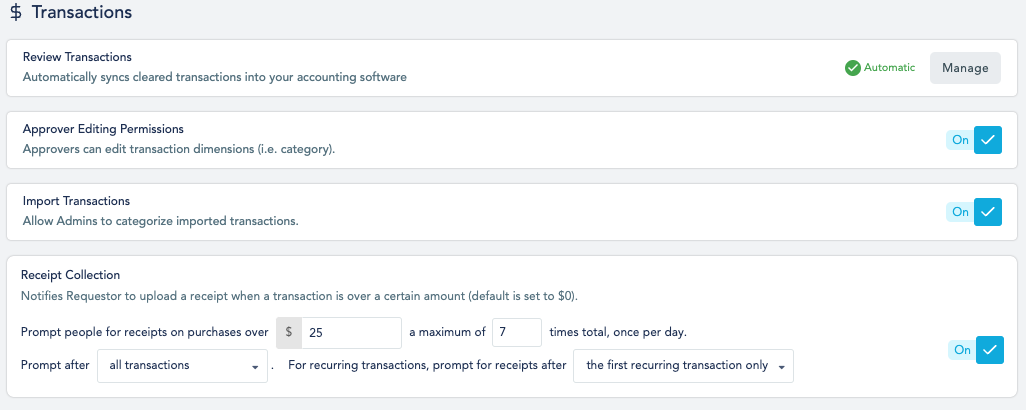
1. Review Transactions
Choose whether Teampay automatically syncs cleared transactions into your accounting software. If enabled, your team will be required to manually sync transactions.
2. Approver Editing Permissions
Approvers can edit transaction dimensions (i.e. category, class).
3. Import Transactions
If your organization is importing non-Teampay transactions, this setting will allow for the categorization of the transactions once synced to Teampay.
4. Receipt Collection
Notifies Requestor to upload a receipt when a transaction is over a certain amount (default is set to $0).
Here, you'll have the flexibility to enforce a receipt collection policy that works for you.

Comments
0 comments
Article is closed for comments.