NetSuite Tipalti Integration
What is it?
Teampay’s Netsuite and Tipalti workflow enables you to create, push, and pay for a Purchase Order. The workflow is conveniently triggered directly from Teampay.
Why use it?
Purchase orders (POs) are created in Teampay and immediately synced to NetSuite, which then can be accessed by Tipalti. This allows finance teams to easily match invoices and POs, close out POs, and make global payments, all in Tipalti. A record of the payment is automatically stored in NetSuite, and users can view the completed PO in Teampay. Because all three systems are updated automatically, finance teams only need to go to one place to compare committed and actual spend for non-credit card transactions, as well as to capture accrual on committed spend.
How does it work?
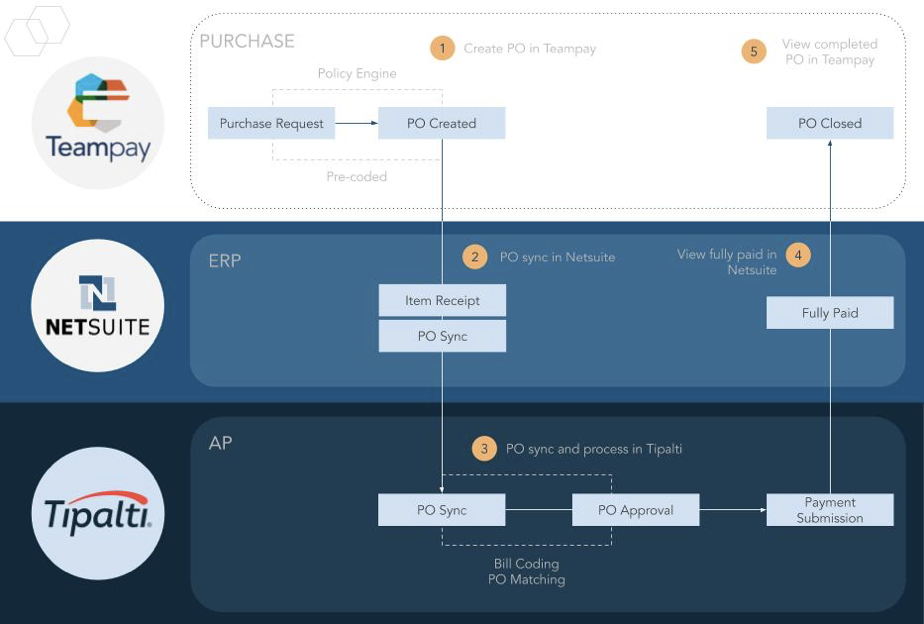
- A Purchase Order is created in Teampay, and automatically sent to Netsuite
- If you want three-way-matching, manually create an Item Receipt for this Purchase Order in NetSuite
- Purchase Orders, the vendor on the Purchase Order, and Item Receipts (if you created it) sync into Tipalti
- Create a Bill in Tipalti via Supplier upload, Supplier email, or manual creation. Code the Bill to match the Purchase Order coding in Netsuite
- Once the Supplier’s Bill is approved in Tipalti, it can be paid.
- Once the Bill is paid in Tipalti, a Bill and Bill Payment sync Tipalti to Netsuite, which subsequently closes out the Purchase Order in Teampay.
Teampay to Netsuite
- A Purchase Order is requested from Teampay. Purchase Orders automatically sync over into Netsuite.
- Here is an example of a synced Purchase Order.
- (optional) Manually create an Item Receipt for this Purchase Order.
- Teampay will search for an existing Vendor to tie the Purchase Order to. If it cannot find one, we will automatically create a new one. We also update the Vendor with the Teampay accounts payable account, since that is a Tipalti requirement.
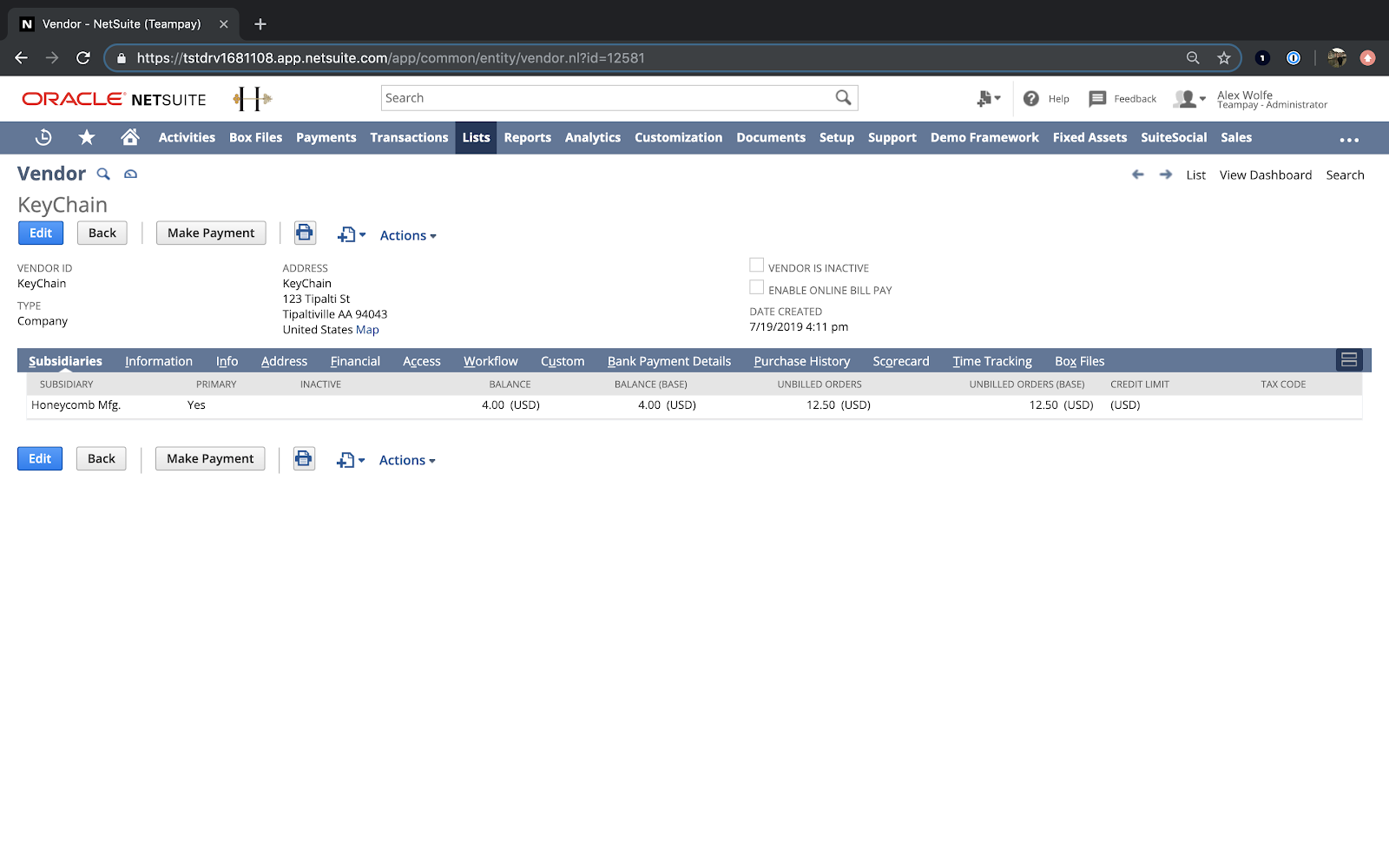 Netsuite to Tipalti
- Every 5 minutes, new Vendors and Purchase Orders sync from NetSuite to Tipalti. If three-way-matching is selected in in Tipalti, then Tipalti also looks for new Item Receipts.
The sync can be monitored in Tipalti under “App monitoring” to make sure everything has synced successfully, and if not, you can view the errors.
- If Vendor and Purchase Order sync successfully to Tipalti (and Item Receipts if three-way-matching is specified), then a Bill can be created in Tipalti. Bills can be created in 3 ways:
- Manually added in Tipalti's AP Hub
- Vendors email them in
- Suppliers upload them via Tipalti's Supplier Portal
This is an example of a Bill that is being added manually in Tipalti’s AP Hub:
- After a Bill is created, the Purchase Order matching and coding process begins. The coding for the Bill should match the coding on the Purchase Order.
An approved Bill:
- Once approved, a Bill can be submitted for payment
6.Once the Bill has been paid in Tipalti, the status of the Bill in Netsuite will update.
7. A webhook polls for Purchase Order status in NetSuite, which then closes the PO in Teampay.
Comments
0 comments
Please sign in to leave a comment.